Connect artwork storage
Choose where ArtDrop stores your artwork so your print providers can use it to create products.
Before you begin
- Connect the storage service you want ArtDrop to use. Have its account details ready.
- Keep a separate copy of your original artwork.
How it works
ArtDrop uploads the artwork needed for your products to the storage service you choose. Save and test upload checks the connection with a small test image.
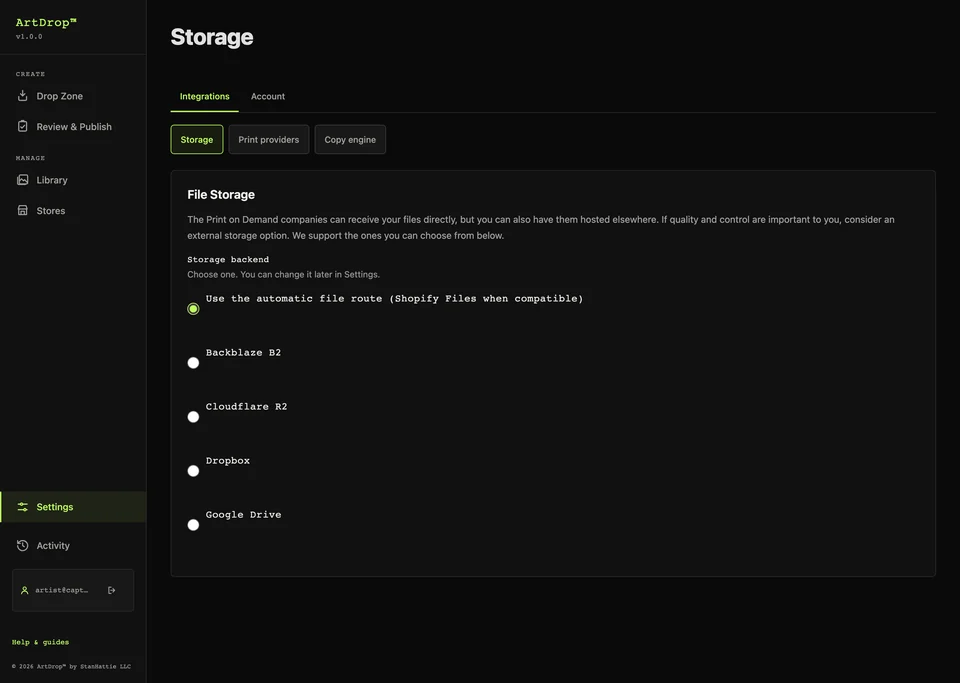
Steps
-
Choose a service
Open Storage and choose Backblaze B2, Cloudflare R2, Dropbox, or Google Drive. With a Shopify store, Send files straight to my print provider is also offered; it needs no storage account and has no separate test.
-
Connect your account
Complete the fields shown for your service and choose Save and test upload.
-
Create a product
Upload an artwork and check the finished product. This confirms your print provider can use the stored file.
Expected result
Your artwork is stored with your chosen service and available to the print provider creating the product.
Good to know
- An Etsy-only account needs one supported external storage service such as B2, R2, Dropbox, or Google Drive.
- Storage services have their own limits and charges.
Troubleshooting
- A connection test failed? Check the account details, destination folder or bucket, and upload permissions, then inspect the named storage service before retrying.
- A provider cannot load an image? Check that the file URL is accessible to that provider.
How to undo or clean up
To change services, save the new connection. Delete old stored files in the previous service when you no longer need them.