Create and publish products with Printify
Save your Printify products, variants, and prices, then turn artwork into listings for your connected Shopify or Etsy store.
Before you begin
- Connect a Printify shop linked to your Shopify or Etsy store.
- Have your Printify account key ready.
How it works
ArtDrop uploads the artwork, creates the Printify product, and asks Printify to publish it to the connected store.

Steps
-
Choose your shop
Select the Printify shop linked to your intended Shopify or Etsy store. Confirm the connection in Printify.
-
Choose products and variants
Search the catalog, choose a print provider, and select up to 100 variants. Set the artwork placement and retail prices.
-
Save and upload
Save the product setup, then add artwork to Drop Zone.
-
View the listing
Follow Live Log, then open the product in Printify and your storefront to check its images, variants, price, and publication status.
Expected result
Printify creates your product and sends its listing to the connected Shopify or Etsy store.
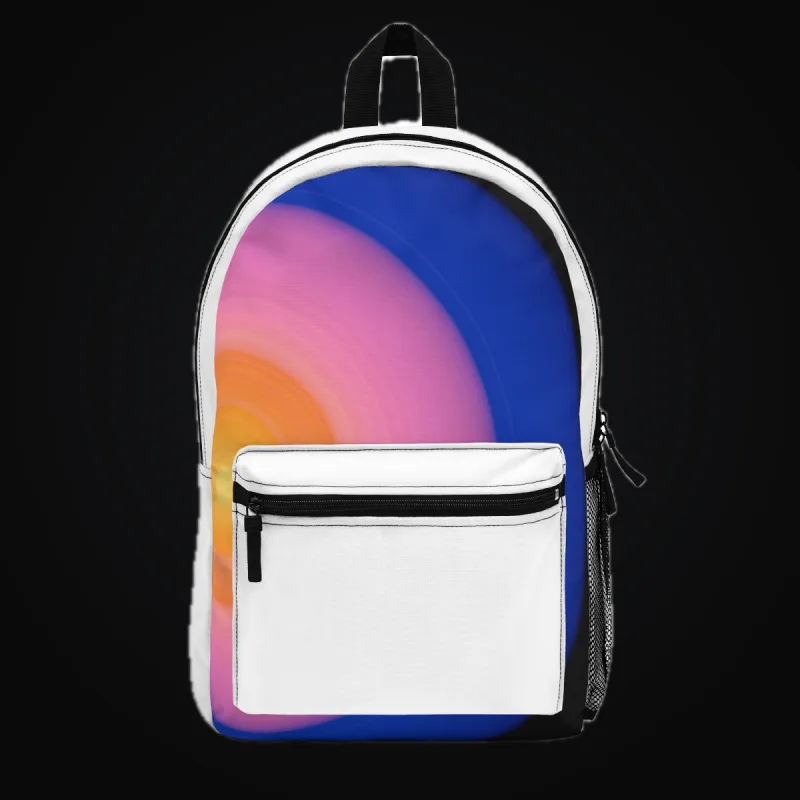
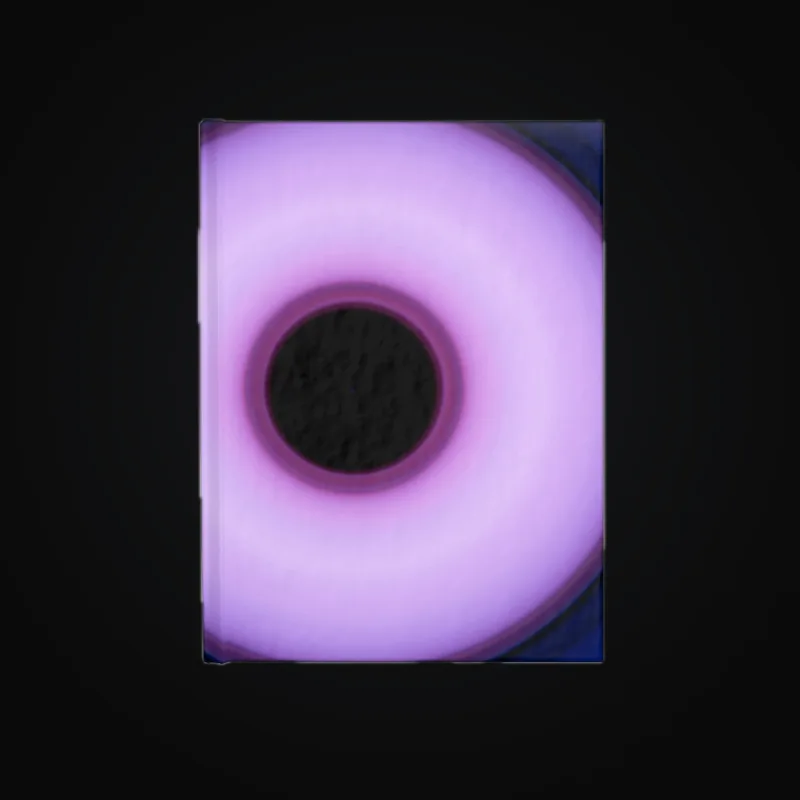
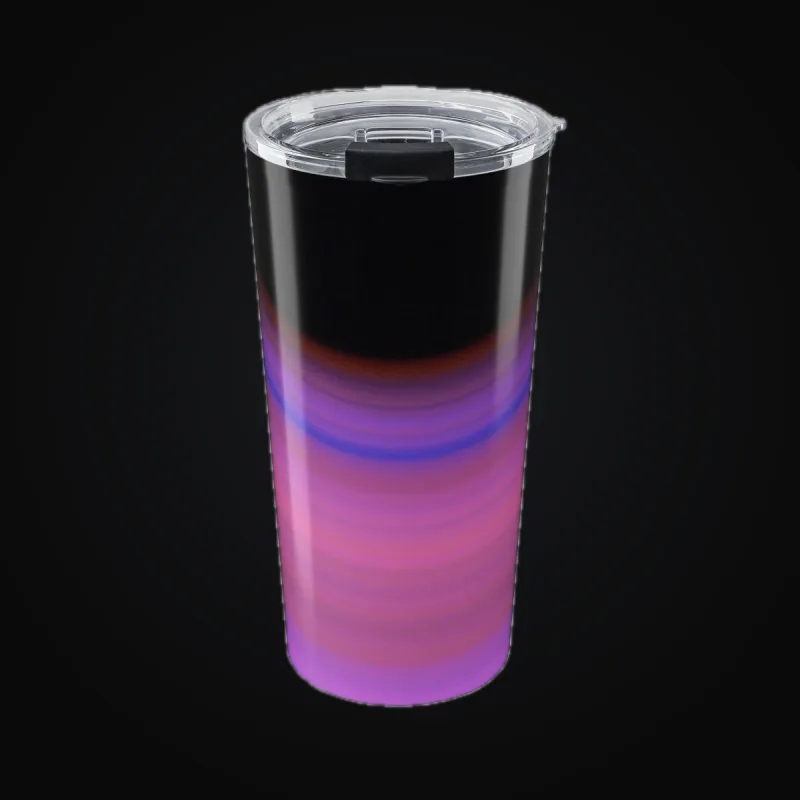
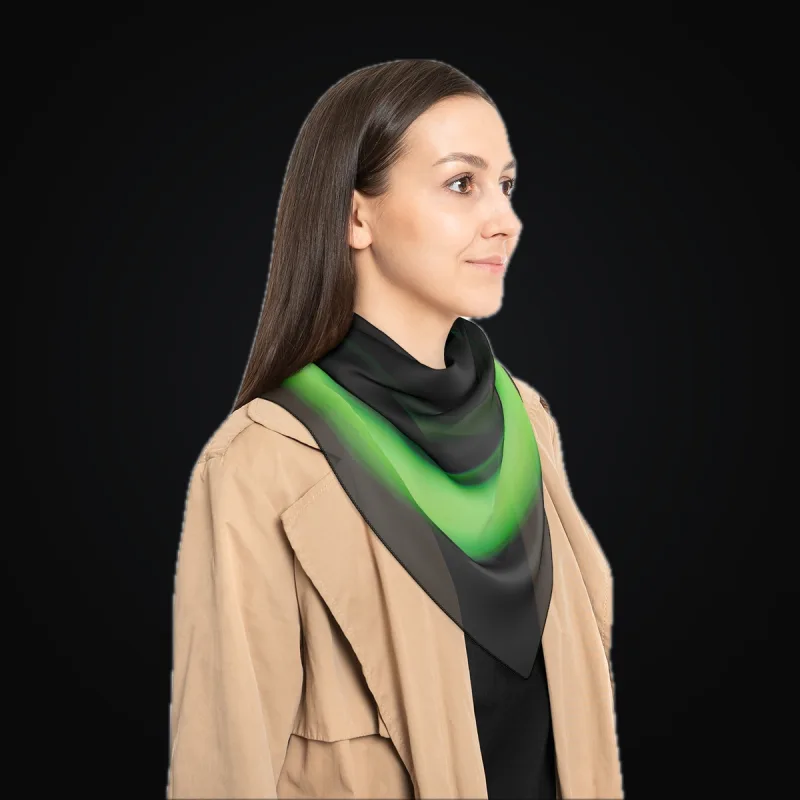
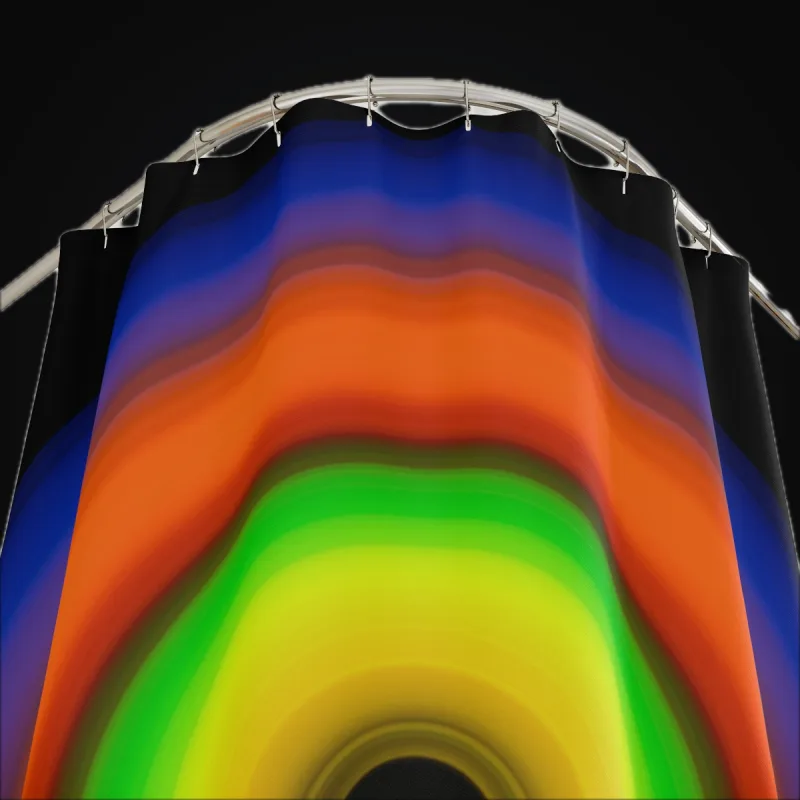
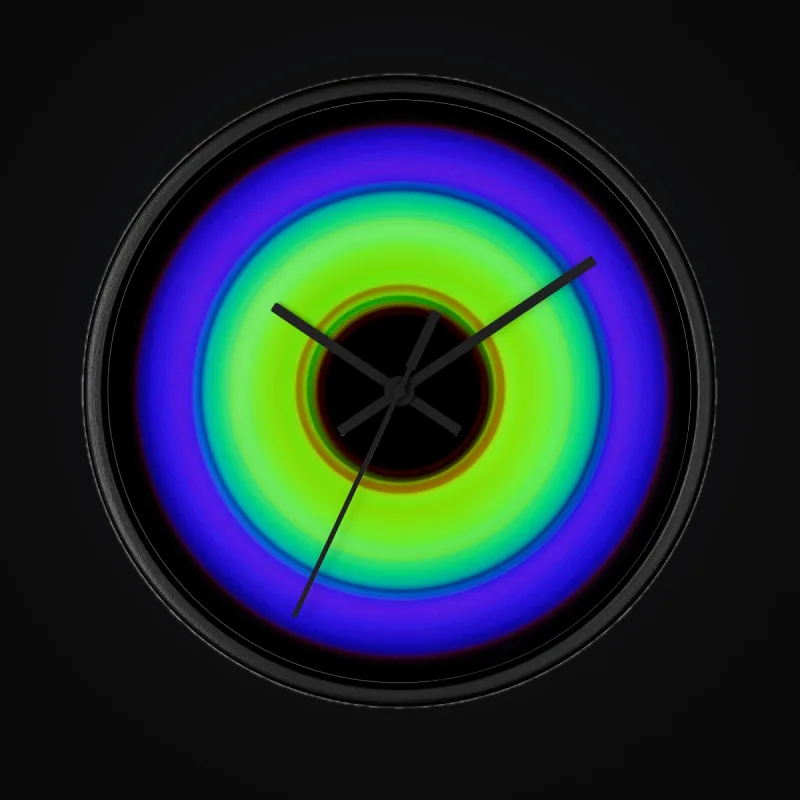
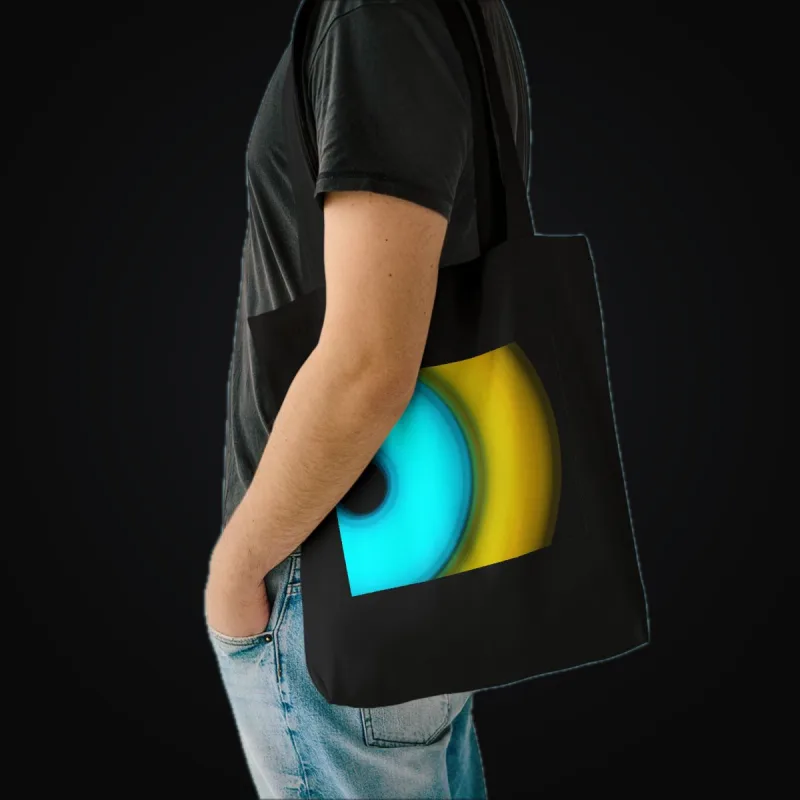
Printify product mockups

Good to know
- Catalog search shows up to 50 matches. Use a more specific search when needed.
- Use no more than 100 variants in a saved product.
- ArtDrop submits one artwork placement per product. Supported fabric products also offer Mirror repeat.
- Printify may take additional time to make the listing visible in your store.
Troubleshooting
- The wrong store received a product? Check the selected Printify shop and its connected storefront.
- A listing is missing? Check its publication status in Printify and the storefront before trying again.
- A create request failed? Look for an existing product in Printify before repeating the upload.
How to undo or clean up
Disable the product setup for future drops. Remove unwanted products in Printify and check the corresponding storefront listing.